
From time to time I am approached by customers who would like to add columns to the out of box views like My Active Work Items, Team Work, Active Work etc. By default there are a set of out of box properties that are shown and while you are able to hide or show these properties you cannot add any new or different properties.
The supported way of achieving adding new properties is to create a Table widget dashboard in Cireson Analytics and then promote that as a view and set the access rights under navigation setting of the portal. One major limitation of this is the view then does not contain the Show\Hide activities or in-active work item check boxes. For many people these checkboxes are very important in how they use the view on a daily basis.
In this article, I will step through how to not only create a custom view but also how to retain the Show\Hide check boxes that would be expected of the main work item views in the Cireson portal.
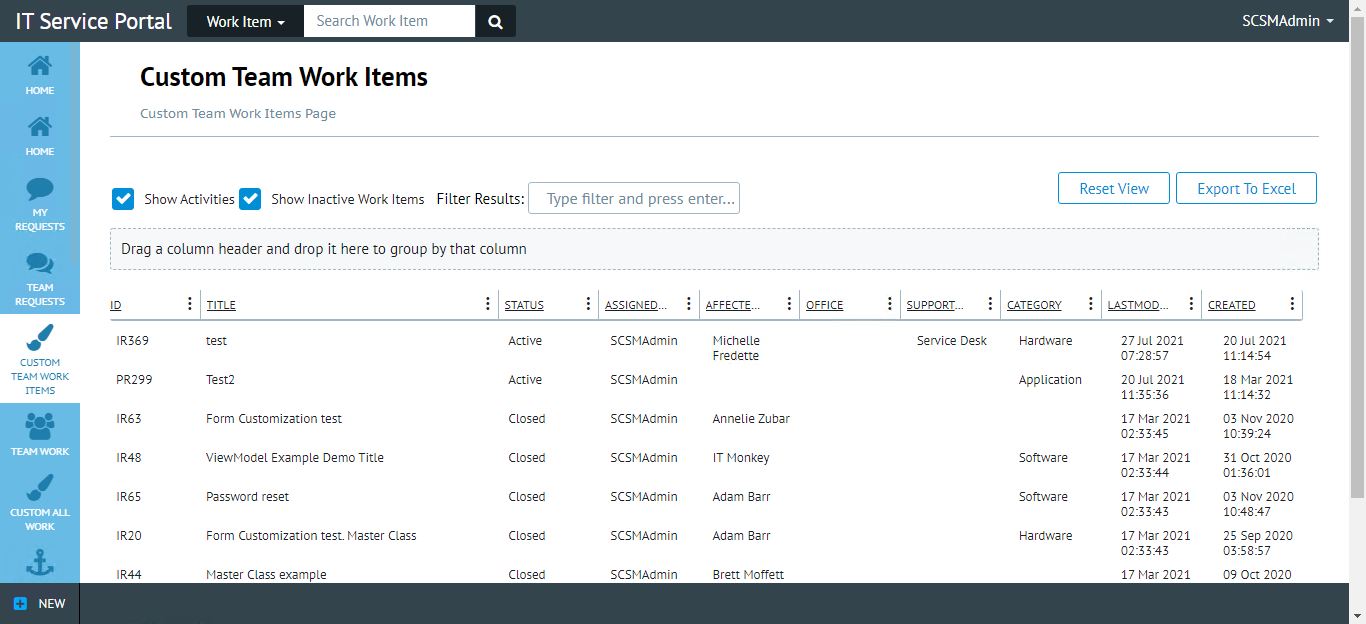
Every view is made up of 4 parts.
- The Data Query. (That returns the data needed for the view)
- A Navigation node. (The navigation to the page shown on the left of the portal)
- View Panel. (The actual page that is shown)
- The Display string values for the pages. (This allows for support of multiple languages)
Together these come together to create the page that any analyst or end user can access.
This blog will step through each item but you can skip the technical pieces below and jump straight to the example code that will work in an English only environment without any need for a detailed understanding of the solution.
The code repository for this solution can be found here: https://github.com/BrettMoff/Custom-All-Workitems
If you have read this far, you are interested in how this solution works and how to possibly edit the solution to fit your specific needs and environment.
NOTE: The example shown in this blog article is just for All Work Items but the source file repository will have examples of all types of views.
This solution uses a SQL query to setup the view components as needed and insert the required values in to the database where needed.
First off, all nav nodes, nav panels and data sources have a unique ID (GUID) that is their key field. These are easy enough to generate in PowerShell by running the following command:
[GUID]::NewGuid()This will produce a GUID that will be unique.
Using this command we can create 3 new GUID’s for the script and enter them as variables such as:
DECLARE @NavNodeGuid nvarchar(255) = 'a8045e60-8db2-4f14-80f5-93bb4da011e9'
DECLARE @ViewPanelGuid nvarchar(255) = '30a1d6a1-a1d6-4e77-be96-5239fa0def05'
DECLARE @DataSourceGuid nvarchar(255)  = 'dd46924d-9199-4b5d-ae35-ea275a539df4'
We can also declare a bunch of variables that will be required later in the SQL script, such as the title of the Menu item, Page title, the Locale, and the location of the customer Java Script that will use and control this view.
DECLARE @MenuTitle nvarchar(255) = 'Custom All Work'
DECLARE @PageTitle nvarchar(255) = 'Custom All Work Items Page'
DECLARE @Locale nvarchar(3) = 'ENU'
DECLARE @DivId nvarchar(255) = 'customMainGrid'
DECLARE @ScriptLocation nvarchar(255) = '/CustomSpace/Dashboard_AllWorkItems.js'
Next, we want to clean up any existing view that may already exist. This ensures that if the script is run multiple times it is not going to cause any issues by entering the same value multiple times. This SQL just deletes the values if they already exists so it is possible to iteratively tweak the solution and recreate it easily:
DELETE FROM DisplayString WHERE ElementID = @NavNodeGuid and LocaleID = @Locale
DELETE FROM NavigationNode where Id = @NavNodeGuid
DELETE FROM ViewPanel where id = @ViewPanelGuid
DELETE FROM DataSource where Id = @DataSourceGuid
The Navigation Node
A navigation node is what the portal displays in the navigation bar down the left of the page. This includes the name of the node and the icon that is to be displayed as well as a range of setting for the portal to use.
Inserting the name of the node in to the DisplayString table is needed to allow multiple languages and then inserting of the values and variables created earlier to create the node page.
The SQL for creating the navigation node looks like this:
INSERT INTO [dbo].[DisplayString]  (ElementID, LocaleID, DisplayString)
VALUES (@NavNodeGuid, @Locale, @MenuTitle)

INSERT INTO NavigationNode(Id, [Definition], Ordinal, Sealed, IsPublic, IsVisible, LicenseRequired, IconClass)
VALUES (
@NavNodeGuid,
'{"Id":"' + @NavNodeGuid + '","layoutType":"full","view":{"header":{"title":"' + @MenuTitle + '","subTitle":"' + @PageTitle + '"},"body":{"content":{"rows":[{"columns":[{"ColSpan":12,"type":"viewPanel","ViewPanelId":"' + @ViewPanelGuid + '"}]}]}}}}',
0,1,0,0,NULL, 'fa fa-paint-brush')
The View Panel
Once a navigation node is created, the portal need to be able to link to a page that should be displayed. In this case a custom java script that was defined in the variables that were created earlier.
The View Panel table hold this data and the main content for it is HTML. This can be entered in to SQL using a script like this:
INSERT INTO ViewPanel(Id, [Definition], TypeId)
VALUES (
@ViewPanelGuid,
'{
"id":"' + @ViewPanelGuid + '",
"type":"html",
"content":"
<div>
<head>
	<title>' + @PageTitle + '</title>
	http://'
	<style>
		#' + @DivId + ' tr:hover { background-color: lightcyan; color: black; }
		#' + @DivId + ' tr:hover td:nth-of-type(-n+2) { background-color: skyblue; }
		#' + @DivId + ' th:hover, #customMainGrid td:nth-of-type(-n+2):hover  { cursor: pointer; }
	</style>
</head>

<div id=\"' + @DivId + '\" customdashid=' + @DataSourceGuid + ' >
	Loading file \"' + @ScriptLocation + '\"...?
</div>
"}',
'html'
)
The Data Query
The process starts with a SQL query that will return the data that is needed to display on within the view. For most people this will just be key properties of the work item class such as affected user, assigned user, status, etc.
The SQL query for this is simple enough and the below SQL query will return the Title, Assigned User, Affected user, Office, Last Modified date\time, and Created date\time properties.
Select WorkItemId as [Id],
	WorkItem.Title,
	IIF(WorkItem.ClassId = 'bfd90aaa-80dd-0fbb-6eaf-65d92c1d8e36', ReviewerCIUser.DisplayName, WorkItem.AssignedUser) as AssignedUser,
	WorkItem.AffectedUser,
	AffectedCIUser.Office,
	WorkItem.LastModified AT TIME ZONE 'UTC' as LastModified, --AT TIME ZONE requires SQL2016. Allows kendo grids to correctly convert dates to the browser's local time.
	 WorkItem.Created AT TIME ZONE 'UTC' as Created --AT TIME ZONE requires SQL2016. Allows kendo grids to correctly convert dates to the browser's local time.
from ServiceManagement.dbo.WorkItem
However some properties that are wanted may be GUID values such as Support Group, Category, and Status. To return the actual text value for these properties the Display String table needs to be joined to the Work Item table. The view should also not contain any work items that are not active, so the query should use a “Not In” list to exclude any work items that are not active.
Finally, any of the display strings that are to be returned need to be in the language that we want. In this example it is just limited to English (ENU) for the sake of simplicity.
The SQL query would then look something like this:
SELECTWorkItemId as [Id],
	WorkItem.Title,
	DisplayStringStatus.DisplayString as [Status],
	IIF(WorkItem.ClassId = 'bfd90aaa-80dd-0fbb-6eaf-65d92c1d8e36', ReviewerCIUser.DisplayName, WorkItem.AssignedUser) as AssignedUser,
	WorkItem.AffectedUser,
	AffectedCIUser.Office,
	DisplayStringTierId.DisplayString as SupportGroup,
	DisplayStringWorkItemCategory.DisplayString as Category,
	DisplayStringScsmIncidentLocation.DisplayString as IRLocation,
	WorkItem.LastModified AT TIME ZONE 'UTC' as LastModified, --AT TIME ZONE requires SQL2016. Allows kendo grids to correctly convert dates to the browser's local time.
	 WorkItem.Created AT TIME ZONE 'UTC' as Created --AT TIME ZONE requires SQL2016. Allows kendo grids to correctly convert dates to the browser's local time.
from ServiceManagement.dbo.WorkItem

-- Join the Display string of the Work Item Status enumeration list in English only
inner join ServiceManagement.dbo.DisplayString as DisplayStringStatus on DisplayStringStatus.ElementID = WorkItem.StatusId
	and DisplayStringStatus.LocaleID = 'ENU'
	and (and DisplayStringStatus.DisplayString not in (''Resolved'', ''Closed'', ''Completed'', ''Failed'', ''Skipped'', ''Cancelled'')
		or (DisplayStringStatus.DisplayString is not null)

-- Join the Display string of the Support team enumeration list in English only
left join ServiceManagement.dbo.DisplayString as DisplayStringTierId on DisplayStringTierId.ElementID = WorkItem.TierId
	and DisplayStringTierId.LocaleID = 'ENU'

-- Join the Display string of the Category enumeration list in English only
left join ServiceManagement.dbo.DisplayString as DisplayStringWorkItemCategory
	on DisplayStringWorkItemCategory.ElementID = WorkItem.CategoryId
	and DisplayStringWorkItemCategory.LocaleId = 'ENU'

-- Find all Review activities where at least one reviewer has been added
outer apply (
	select top 1 * from ServiceManagement.dbo.WorkItem$Review as ReviewObjects
	where ReviewObjects.ReviewActivityId = WorkItem.Id
		and ReviewObjects.ReviewerId is not null
	order by ReviewObjects.ReviewId Desc --newer reviewers are more likely to have a person, instead of the OOB blank entry.
) as ReviewObjects
left join ServiceManagement.dbo.CI$User as AffectedCIUser on AffectedCIUser.Id = WorkItem.AffectedUserId
left join ServiceManagement.dbo.CI$User as ReviewerCIUser on ReviewerCIUser.ID = ReviewObjects.ReviewerId
Values from other classes that are related to the work item such as the first and last names of the Affected Users manager. (A property value not stored in the Work Item) For any values that are not contained within the Work Item table, the SQL query will need to join tables to get the data required.
This query can then be used to create a table widget in a dashboard that can then be used as a custom view.
However, One of the major differences between a regular view and the My Active Work Items view is the ability to turn on and off activities and to switch between active and all activities as needed. To include these, the SQL query needs to be able to handle an input value (Boolean) to turn these features on or off and either return the data or not.
To do this SQL can allow declared variables that can be replaced by real values in some custom Java script by passing the values in at run time.
This is as simple as declaring the required variables at the top of the query:
declare @SHOWACTIVITIES char = ''{{SHOWACTIVITIES}}''
declare @SHOWINACTIVE char = ''{{SHOWINACTIVE}}''
The variables are placed in double {{ to make it easy for custom Java Script to find them later and replace them with real values.
With these variables the query can then limit the items that are returned to include or exclude activities and to exclude or include pending activities by adding a Where clause to the end of the query:
WHERE (
      (WorkItem.ClassId not in (
            ''7AC62BD4-8FCE-A150-3B40-16A39A61383D'',
            ''BFD90AAA-80DD-0FBB-6EAF-65D92C1D8E36'')
       AND @SHOWACTIVITIES != ''1''
      )
       OR ( @SHOWACTIVITIES = ''1'')
)
As well as a limiting query to the status join earlier in the query:
inner join ServiceManagement.dbo.DisplayString as DisplayStringStatus on DisplayStringStatus.ElementID = WorkItem.StatusId
	and DisplayStringStatus.LocaleID = ''ENU''
	and (@SHOWINACTIVE != ''1'' and DisplayStringStatus.DisplayString not in (''Resolved'', ''Closed'', ''Completed'', ''Failed'', ''Skipped'', ''Cancelled'')
		or (@SHOWINACTIVE = ''1'' and DisplayStringStatus.DisplayString is not null)
)
So the finished query should look like this:
DECLARE @SHOWACTIVITIES char = ''{{SHOWACTIVITIES}}''
DECLARE @SHOWINACTIVE char = ''{{SHOWINACTIVE}}''

Select WorkItemId as [Id],
	WorkItem.Title,
	DisplayStringStatus.DisplayString as [Status],
	IIF(WorkItem.ClassId = ''bfd90aaa-80dd-0fbb-6eaf-65d92c1d8e36'', ReviewerCIUser.DisplayName, WorkItem.AssignedUser) as AssignedUser,
	WorkItem.AffectedUser,
	AffectedCIUser.Office,
	DisplayStringTierId.DisplayString as SupportGroup,
	DisplayStringWorkItemCategory.DisplayString as Category,
        --AT TIME ZONE requires SQL2016. Allows kendo grids to correctly convert dates to the browser time.
	WorkItem.LastModified AT TIME ZONE ''UTC'' as LastModified,
	WorkItem.Created AT TIME ZONE ''UTC'' as Created
from ServiceManagement.dbo.WorkItem

-- Join the Display string of the Work Item Status enumeration list in English only and show\hide inactive items
inner join ServiceManagement.dbo.DisplayString as DisplayStringStatus on DisplayStringStatus.ElementID = WorkItem.StatusId
	and DisplayStringStatus.LocaleID = ''ENU''
	and (
		@SHOWINACTIVE != ''1''
		and DisplayStringStatus.DisplayString not in (
			''Resolved'', ''Closed'', ''Completed'', ''Failed'', ''Skipped'', ''Cancelled''
		)
		or (@SHOWINACTIVE = ''1'' and DisplayStringStatus.DisplayString is not null)
	)

-- Join the Display string of the Support team enumeration list in English only
left join ServiceManagement.dbo.DisplayString as DisplayStringTierId
	on DisplayStringTierId.ElementID = WorkItem.TierId
	and DisplayStringTierId.LocaleID = ''ENU''

-- Join the Display string of the Category enumeration list in English only
left join ServiceManagement.dbo.DisplayString as DisplayStringWorkItemCategory
	on DisplayStringWorkItemCategory.ElementID = WorkItem.CategoryId
	and DisplayStringWorkItemCategory.LocaleId = ''ENU''

-- Find all Review activities where at least one reviewer has been added
outer apply (
	select top 1 * from ServiceManagement.dbo.WorkItem$Review as ReviewObjects
	where ReviewObjects.ReviewActivityId = WorkItem.Id
        and ReviewObjects.ReviewerId is not null
	order by ReviewObjects.ReviewId Desc --newer reviewers are more likely to have a person, instead of the OOB blank entry.
) as ReviewObjects

-- Join the Affected user and Reviewer tables to return the user that is affected by the work item
left join ServiceManagement.dbo.CI$User as AffectedCIUser on AffectedCIUser.Id = WorkItem.AffectedUserId
left join ServiceManagement.dbo.CI$User as ReviewerCIUser on ReviewerCIUser.ID = ReviewObjects.ReviewerId

--Limit the work item types returned depending on the variables set
WHERE (
      (WorkItem.ClassId not in (
            ''7AC62BD4-8FCE-A150-3B40-16A39A61383D'',
            ''BFD90AAA-80DD-0FBB-6EAF-65D92C1D8E36'')
       AND @SHOWACTIVITIES != ''1''
      )
       OR ( @SHOWACTIVITIES = ''1'')
)


order by LastModified Desc
Phew!
That’s a lot to take in so far but it is important as it is the query above is the source of the data that is returned to the Active Work page.
Finally it is required to create a SQL query to insert data in to a database using the Insert Into command and then providing the values needed. For this example the SQL command is as simple as:
INSERT INTO [dbo].[DataSource] (Id, Title, ConnectionString, Query)
VALUES (@DataSourceGuid, 'Dashbaord - ' + @MenuTitle, NULL, @Query)
Using variables instead of entering the data as a single string makes the query much easier to read and understand.
Putting It All Together
The final step is to take all of these pieces and place it all in to a single script rather than having to run them all separately. That would look like this:
--Use a GUID generator to create some new guids for your view panel and navigation node.
--NOTE: All guids must be completely lower case. Powershell syntax [GUID]::NewGuid()
DECLARE @NavNodeGuid nvarchar(255) = 'a8045e60-8db2-4f14-80f5-93bb4da011e9'
DECLARE @ViewPanelGuid nvarchar(255) = '30a1d6a1-a1d6-4e77-be96-5239fa0def05'
DECLARE @DataSourceGuid nvarchar(255) = 'dd46924d-9199-4b5d-ae35-ea275a539df4'

-- Set the page title and the default language
DECLARE @MenuTitle nvarchar(255) = 'Custom All Work'
DECLARE @PageTitle nvarchar(255) = 'Custom All Work Items Page'
DECLARE @Locale nvarchar(3) = 'ENU'
DECLARE @DivId nvarchar(255) = 'customMainGrid'
DECLARE @ScriptLocation nvarchar(255) = '/CustomSpace/Dashboard_AllWorkItems.js'

--Delete anything if it already exists so that you can iteratively tweak it and recreate it easily
DELETE FROM DisplayString where ElementID = @NavNodeGuid and LocaleID = @Locale
DELETE FROM NavigationNode where Id = @NavNodeGuid
DELETE FROM ViewPanel where id = @ViewPanelGuid
DELETE FROM DataSource where Id = @DataSourceGuid

--Creates the navigation node display string
INSERT INTO [dbo].[DisplayString]  (ElementID, LocaleID, DisplayString)
VALUES (@NavNodeGuid, @Locale, @MenuTitle)

--Create the navigation node. This example creates a navigation node with only one row/one column with a single view panel
INSERT INTO NavigationNode(Id, [Definition], Ordinal, Sealed, IsPublic, IsVisible, LicenseRequired, IconClass)
VALUES (
@NavNodeGuid,
'{"Id":"' + @NavNodeGuid + '","layoutType":"full","view":{"header":{"title":"' + @MenuTitle + '","subTitle":"' + @PageTitle + '"},"body":{"content":{"rows":[{"columns":[{"ColSpan":12,"type":"viewPanel","ViewPanelId":"' + @ViewPanelGuid + '"}]}]}}}}',
0,1,0,0,NULL, 'fa fa-paint-brush')

--Create the view panel
--This example defines a type=HTML view panel that fills up the entire view panel port and embeds an iframe pointed at the URL specified.
--You can include HTML using an iframe like this example or you can hard code any HTML/Javascript in the view panel content attribute.
INSERT INTO ViewPanel(Id, [Definition], TypeId)
VALUES (
@ViewPanelGuid,
'{
"id":"' + @ViewPanelGuid + '",
"type":"html",
"content":"
<div>
<head>
	<title>' + @PageTitle + '</title>
	http://'
	<style>
		#' + @DivId + ' tr:hover { background-color: lightcyan; color: black; }
		#' + @DivId + ' tr:hover td:nth-of-type(-n+2) { background-color: skyblue; }
		#' + @DivId + ' th:hover, #customMainGrid td:nth-of-type(-n+2):hover  { cursor: pointer; }
	</style>
</head>

<div id=\"' + @DivId + '\" customdashid=' + @DataSourceGuid + ' >
	Loading file \"' + @ScriptLocation + '\"...?
</div>
"}',
'html'
)

--Create the datasource query.
DECLARE @Query nvarchar(max) = '
/* Custom All Work */
DECLARE @SHOWACTIVITIES char = ''{{SHOWACTIVITIES}}''
DECLARE @SHOWINACTIVE char = ''{{SHOWINACTIVE}}''

Select WorkItemId as [Id],
	WorkItem.Title,
	DisplayStringStatus.DisplayString as [Status],
	IIF(
		WorkItem.ClassId = ''bfd90aaa-80dd-0fbb-6eaf-65d92c1d8e36'',
		ReviewerCIUser.DisplayName,
		WorkItem.AssignedUser
	) as AssignedUser,
	WorkItem.AffectedUser,
	AffectedCIUser.Office,
	DisplayStringTierId.DisplayString as SupportGroup,
	DisplayStringWorkItemCategory.DisplayString as Category,
	--AT TIME ZONE requires SQL2016. Allows kendo grids to correctly convert dates to the browser time.
	WorkItem.LastModified AT TIME ZONE ''UTC'' as LastModified,
	WorkItem.Created AT TIME ZONE ''UTC'' as Created
from ServiceManagement.dbo.WorkItem

-- Join the Display string of the Work Item Status enumeration list in English only and show\hide inactive items
inner join ServiceManagement.dbo.DisplayString as DisplayStringStatus on DisplayStringStatus.ElementID = WorkItem.StatusId
	and DisplayStringStatus.LocaleID = ''ENU''
	and (@SHOWINACTIVE != ''1'' and DisplayStringStatus.DisplayString not in (
		''Resolved'',
		''Closed'',
		''Completed'',
		''Failed'',
		''Skipped'',
		''Cancelled''
		)
		or (@SHOWINACTIVE = ''1'' and DisplayStringStatus.DisplayString is not null)
	)

-- Join the Display string of the Support team enumeration list in English only
left join ServiceManagement.dbo.DisplayString as DisplayStringTierId on DisplayStringTierId.ElementID = WorkItem.TierId
	and DisplayStringTierId.LocaleID = ''ENU''

-- Join the Display string of the Category enumeration list in English only
left join ServiceManagement.dbo.DisplayString as DisplayStringWorkItemCategory
	on DisplayStringWorkItemCategory.ElementID = WorkItem.CategoryId
	and DisplayStringWorkItemCategory.LocaleId = ''ENU''

-- Find all Review activities where at least one reviewer has been added
outer apply (
	select top 1 * from ServiceManagement.dbo.WorkItem$Review as ReviewObjects
	where ReviewObjects.ReviewActivityId = WorkItem.Id
		and ReviewObjects.ReviewerId is not null
	order by ReviewObjects.ReviewId Desc --newer reviewers are more likely to have a person, instead of the OOB blank entry.
) as ReviewObjects


-- Join the Affected user and Reviewer tables to return the user that is affected by the work item
left join ServiceManagement.dbo.CI$User as AffectedCIUser on AffectedCIUser.Id = WorkItem.AffectedUserId
left join ServiceManagement.dbo.CI$User as ReviewerCIUser on ReviewerCIUser.ID = ReviewObjects.ReviewerId

--Limit the work item types returned depending on the variables set
where (
	(WorkItem.ClassId not in (
		''7AC62BD4-8FCE-A150-3B40-16A39A61383D'',
		''BFD90AAA-80DD-0FBB-6EAF-65D92C1D8E36''
		)
		AND @SHOWACTIVITIES != ''1''
	)
	OR ( @SHOWACTIVITIES = ''1'')
)

order by LastModified Desc
'

-- Insert the Data query in to the database
INSERT INTO [dbo].[DataSource] (Id, Title, ConnectionString, Query)
VALUES (@DataSourceGuid, 'Dashbaord - ' + @MenuTitle, NULL, @Query)


--end
Now the SQL query has been constructed it can be run against the database to enter the data that has been constructed.
The view will then be visible in the navigation administration menu and AD user groups can be assigned to restrict who can view or use this new page.
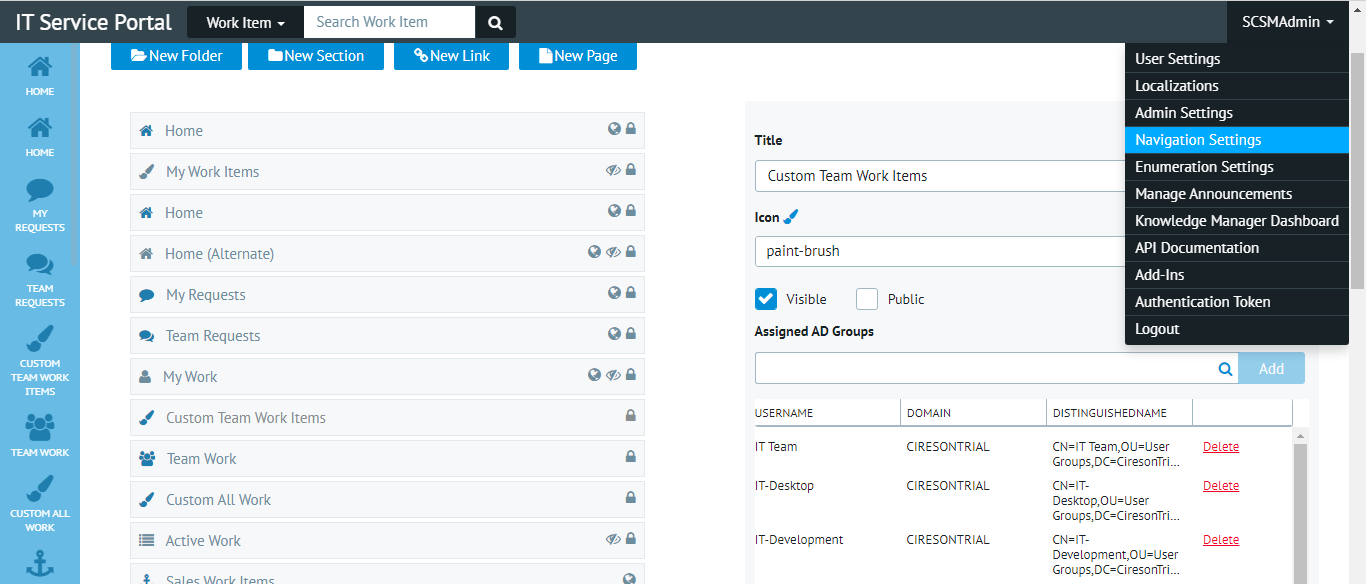
The final step is to include the custom java script for the page that was created via the SQL query. Copying the code to the script location that was defined as a variable at the very start of the query. In this example the location is ‘/CustomSpace/Dashboard_AllWorkItems.js’.
The JS script (and example SQL files) can be found in the GitHub repository here: https://github.com/BrettMoff/Custom-All-Workitems
I hope this has been useful and you can use this solution in your environment.
For any assistance in creating custom views, please contact the Cireson team and we will be more than happy to assist.