

Many customers with Cireson’s True Password Reset need to publish the password reset portal external to the organisation enabling end users the ability to change their domain passwords from anywhere. Publishing the solution externally provides great value and flexibility however, internet facing web servers create security concerns that MUST be addressed to reduce security risk to the organisation.
In this blog post I will take you through some steps to ensure the security of your site is as high as possible.
ENABLE HTTPS ONLY
The most obvious first step in securing ANY web site is to enable HTTP (port 443) with a signed trusted certificate. This is ubiquitous throughout the internet nowadays and provides us with a level of security to know that no one has hijacked the communications between the client and the server therefore preventing replay attacks.
To set the True Password Reset site to accept an HTTPS connection we first must provide it with a certificate to use to secure the communications. For testing you can use a self-signed certificate but for production use it is recommended to use a publicly signed certificate to ensure maximum compatibility regardless of what machine your end users are connecting from.
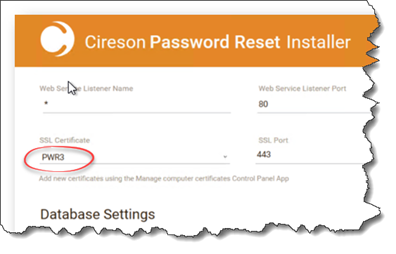
The easiest way to include a certificate in to the True Password Reset site is at installation time. Ensure the certificate is installed on the server(s) that will be hosting the password reset server and select the required certificate and installation time.
This will save the certificate values in to the configuration settings to ensure HTTP is available for end users.
DISABLE HTTP
To ensure all users visit the True Password Reset site across a secure channel, we want to enforce HTTPS on the page. To do this we have to disable HTTP protocol, or simply stop Port 80 listening.
To do this:
- Logon to the server hosting True Password Reset.
- Within the Password Reset installation folder, open Platform_CiresonPasswordReset.Config in a text editor such as Notepad++.
- Within the URLS section, remove the value “http://*:80” and ensure “https://*:443“ is available.
- Save the file and restart the CiresonPasswordReset service.
Once this change has been made, if a user navigates to HTTP:// they should be greeted with a 404 Error as the server is no longer responding on that port.
HARDENING THE OPERATING SYSTEM
Once we have force end users to communicate over HTTPS only, we need to make sure that the correct protocols are being used and no outdated security cyphers are used that may expose weaknesses or open us to known attacks.
So how do we know if our server is secure or not?
The best way to know where you stand is to check your server against some of the free tools that are available on the internet for scanning sites for known issues.
Some examples are:
- SOPHOS SecurityHeaders.io – Used for checking what response headers are returned from your site to tell browsers and search web crawlers what to and what not to scan and record from your site.
- Symantec CryptoReport – Used for checking your certificate plus a bunch of server configurations.
- Qualys SSLLabs – Used for giving an in-depth report on what protocols and ciphers are enabled and what possible attacks can be launched against any weak or outdated configurations.
The top two things you can do to secure your site in relation to protocols and ciphers are:
- Disable SSL.
- Configure TLS.
To do this I would suggest using a tool called IIS Crypto which is a free tool from Nartac Software. Those of you who are concerned that the name of the tool has IIS in the name and the True Password Reset app does not use IIS, do not despair. The underlying web protocols are intrinsic to Windows, not the web hosting service.
With this tool installed you have two choices for configuring the settings you need:
- Download the template that I have created to set these exact settings described below.
Or
- Configure the following settings manually.
Protocols
The only protocols that should be enabled are:
- TLS 1.0
- TLS 1.1
- TLS 1.2
Uncheck any others.
NOTE: If you wish to score an A+ on Qualys SSLLabs, you will have to disable both TLS 1.0 and 1.1 to prevent the protocol from being able to “Fallback” to other protocols and potentially suffering from a protocol downgrade attack such as POODLE.
Ciphers
The only ciphers that should be enabled are:
- Triple DES 168
- AES 128/128
- AES 256/256
Uncheck any others.
Hashes
Uncheck the MD5 hash as this is the only one in the list that is known to be weak.
Key Exchanges
All the key exchanges that are listed are fine and can be left enabled.
Cipher Suite Ordering
The order in which your server offers up its cipher suites to browsers can have a significant impact on your implementation of TLS. To take the maximum advantage of the suites shipped with Windows Server 2016 ensure the order of the cipher suites are as follows:
- TLS_ECDHE_RSA ciphers suites should be first in the list.
- TLS_DHE_RSA should come after any of the above ciphers.
If you have an elliptic curve digital signature algorithm (ECDSA) certificate, you could move the TLS_ECDHE_ECSA ciphers to the top to ensure the most robust cipher is used, however, most of us do not have one of these certificates so these ciphers can be disabled to speed up negotiation.
Finally, it is important to ensure that all ELS_DHE ciphers are disabled. The Diffie Hellman Key Exchange cipher is known to have issues that I won’t get in to here in this article, but suffice to say this should be disabled from your server.
That’s it.
Hope this guide has been useful.
