

When testing SCSM service desk notifications to customers we all want to make sure they are not only sending at the right time but also contain the right information. Unfortunately, out of the box the SCSM console interface used to create email templates shows us the raw HTML only and not the finished product, so often it is a case of changing some formatting, running a test workflow to send an e-mail, check in our own inbox for the result, then tweak some more.
There are two tools that I have used to great effect to solve this issue. The SCSM Email Template Tester allows administrators to preview what the e-mail will look like without having to send an e-mail and the Papercut SMTP service application allows administrators to send e-mails without ACTUALLY sending an email. This is really helpful to test triggers for notifications or subscriptions.
SCSM Email Template Tester
Many moons ago a SCSM community member created a tool that allows administrators to see what the end result HTML output would be directly from the console without needing to actually send an e-mail. The SCSM Email Template Tester was available for a long time on different websites and was finally taken over by a development team called itNetx. They have since stopped development or support of SCSM products on their website.
To combat the loss of such a solution I have made the management pack available via my GitHub page here.
To use the solution:
- Download and import the MPB management pack bundle
- Select the template you wish to test in the SCSM console
- Click Test Template in the Tasks pane

- From the object select an Work Item to test the template with
(The class will be automatically selected based on template’s target class)
- Check the output of HTML

and you can even swap over to the HTML source to view the code directly:
- To test the template in another language, change console’s language:

Papercut SMTP Service
Papercut is a 2-in-1 quick email viewer and built-in SMTP server. It is built to receive messages only and display them in a way that you can see not only that it sent and who it sent to but also the body, html, headers, attachments, etc. right down to the raw encoded bits. Papercut can be configured to run on start-up and run in the background. The service then shows a popup notification when a new message has arrived to help indicate that an e-mail was received.
To use the solution:
- Download the install file from https://github.com/ChangemakerStudios/Papercut/releases
- On your SCSM Test or Dev management server, run the installer and click Install

- At the welcome screen click Next

- Select both the application and service to install and click Next

- Click Install

- Once the installation has completed, click Finish

- The Papercut application will then run in the background and show an icon in the notification area and will display pop-up messages when new emails are received.
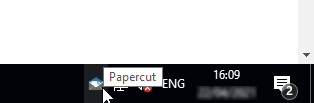
- As the application opens a service on port 25 (The industry standard SMTP port) it is possible to set the SCSM Notification Channel to Localhost (or the server where you installed the Papercut app)

- When you right click the icon and select Show from the menu, you can then see a history of each e-mail that has been send and the format of the e-mail.

Now when the system triggers a notification or subscription e-mail you will be able to see the result within the application.
Awesome! We now have a way to craft emails and test them.
One drawback that we have though is that the Papercut application only has an interface on the server itself, so to interact with it and read e-mails etc. we have to log on locally to the server to view the e-mails. This may not be ideal for you situation as you may not want all SCSM admins to have access to the server directly for security reasons.
A good friend and fellow SCSM nerd (Ryan Kennedy) took an existing PowerShell script to pick up these emails and forward them to his own personal mailbox, or a shared test mailbox. This way any administrator can access the emails without having to log on to the SCSM server and any formatting issues that application like Outlook introduce can also be identified.
The script that is used for this can be found on my GitHub repository here.
Edit the script for you specific settings then set it up on the same server as Papercut is installed on as a scheduled task that runs every 5 minutes or so. By default Papercut will save emails to C:\Program Files (x86)\Changemaker Studios\Papercut\Incoming.

Once setup, all test emails will be sent to the identified inbox regardless of who the recipient was within SCSM.
Happy email editing and testing.