
At a recent meeting of the Adelaide System Center User Community and also at Cireson Innovate 2015 I did a presented on Self-Service Automation Deep Dive (https://vimeo.com/143957653) and showed several automation techniques that I have used over the years. In this series of blog posts I will explain these techniques, why they are useful and how to go about automating them in your environment. (And maybe even share a Runbook or two.)
In Part 1 we will look at taking the Affected User’s name and placing it in the title of the service request to make it easier to find when looking at a queue of work.
In Part 2 we will look at taking some basic user input text fields and placing them in the Description field of the service request.
In Part 3 we will look at taking a multi select query field and enter each of the results in the description field so they are nicely formatted.
What’s Wrong With User Input?
When an end user enters data in to a service request the results are recorded in properties of the associated SR or any activities that are related to that SR. To try and “Help” the analyst these values are then also displayed in the User Input section on the SR form.
With text and drop down lists the data is shown in a format that is easy to read.

Query results however are not as easy.

Not only is the select value shown but also the GUID of the item. If the query is set to allow multiple selections, like the one above, there can be multiple values all mixed together.
This is far from simple and some analysts, especially second and third level support, may never actually read this data or understand what it all means.
How Could User Input Be Used Better?
The user input data would be much more useful if it was somehow added in a nicely formatted way in the SR description or even key pieces of data in the Title.
In Part 1 we will look at the title only and in Part 2 we will cover the Description field.
The SR Title
Does your Service Request view look like this:

All service requests look the same.
An end user then calls up and asks for an update on their service request but hasn’t got their SR Number so you have to search for this Affected User or even the Requested User if someone other than the affected user is calling.
Instead, what if we took the Affected User, or the Requested User from the SR Input data (or any other unique data for the matter) and add it to the Title of the SR?
It would look like this:

Now, doesn’t that look better?!
Much easier to read and quicker to see which SR is which and much easier to jump to the SR that I want as quick as possible.
Lets Automate it!
It’s all well and good knowing what we would like it to look like but if we have to manually type this information in it kind of defeats the purpose of trying to save time and effort.
Like with any automation we need to have a way to call the Runbook (Orchestrator or SMA) in the right sequence and to do this we use the activity workflow.
I usually like to call these Runbooks “Process <Service Request>” so I can create multiple of them that are custom to the type of service request being processed and so that I can keep track of them.
In this example I am going to automate the formatting of data for a single service request with no other activities. I will cover multiple activities in a future blog post.
First off, we need to create a new Runbook in Orchestrator and give it a name that is easy to remember.
This one I’m going to call “Process DL Request”.
NOTE: When in SCSM the folder structure of Orchestrator is lost so don’t rely on the folder structure to be able to find Runbooks when you need to. Add a numbering sequence at the front of the Runbook name to help with that.

Then we need to start the Runbook with an Initialize Data activity and we need to get the SR record with a Get Object activity filtered on the SR ID passed from the Initialize Data activity.

|
Add one property in the Initialize Data for the SR Number that will be passed from the Service Request. |
Select Service Request as the class for the Get Object and filter on the ID property using the subscribed SR Number from the Initialize Data activity. |
 |
|

Once we have the Service request we then have access to all the data stored in the Service Request and any relationships that SR has.
Properties such as Title, Description and User Input are stored in the SR but fields that contain a class, such as Affected User or any multi select query types, are stored as relationships between the SR and the target class.
So to pick the Affected User and add it to the end of the title on the Service Request we first have to retrieve all related user class objects and filter all excluding the Affected User object.

Add the Get Relationship activity and rename it to something like Get SR\User Relationships and link it to the Get Object activity for the Service Request. Then add a Get User Object to the Get Relationship activity. This will be used to get the User record from SCSM once we know it.
| We are looking for the relationships between the Service Request class and the Active Directory User class. This will return ALL user relationships that may exist with this SR. These may be Affected User, Assigned User, Related User, etc. so we have to filter out what we don’t want. | To return the User information we get the user SC Object Guid from the Related Object Guid that is returned. | At this point we will return ALL the users that are related to the SR. So we need to filter the results and this is done on the link. Double clicking on the link will allow you to create an exclude filter based on Relationship Class. Exclude all results that DO NOT EQUAL “Affected User” Do yourself a favour and change the colour of the link to red and maybe even name the link to make it easier to read later. |
 |
 |
  |
We now have all the prices we need to edit the information. Add an Update Object activity from the Service Manager Integration pack so we can now manipulate the data on the SR.
What we want to do is take the current title on the SR (given to us from the Get Object we just added) and then update the Title field with the current value *plus* the Affect User name.

| Select the Service Request class and the SCObjectGuid from the Get Object activity. Add the Title property in the Fields to be updated. Right click on the text box and select Expand, to make our lived easier. |
We are now going to add the Title value that we retrieved when we first ran the Get Object. This will give us the Title as it is right now. We can then add a space, a hyphen and another space to make the formatting look nice, then add the users Display Name field. |
  |
 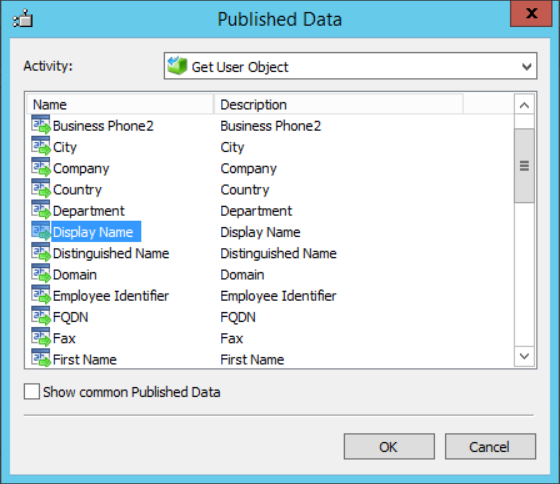 |
The updated field will now look like this: 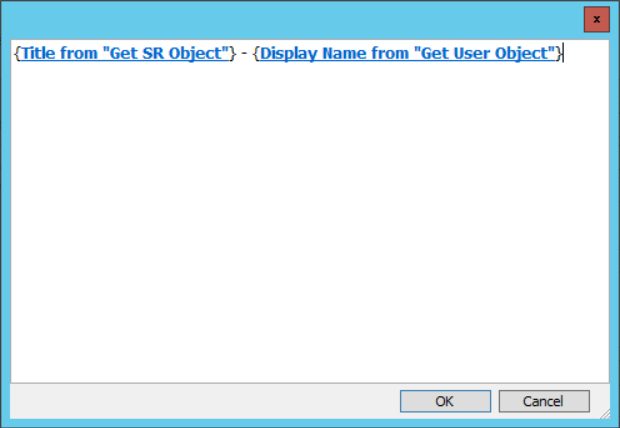
And we’re done.
To make it even easier to follow the Runbook is available Here to download.